When you plug in a smart bulb or a smart plug and the voice command doesn’t trigger anything, the problem rarely lies with the hardware. In most cases, it’s the link between the Player Pop and the Google Home app that hasn’t been properly established. The Free Player Pop features Android TV with built-in Chromecast and Google Assistant, making it a direct entry point into the Google Home ecosystem, provided you follow a few specific steps.
Wi-Fi Network and Player Pop: the prerequisite that the Freebox Pop sometimes complicates
Before even opening the Google Home app, you need to check one point that trips up many installations: the Player Pop and Google speakers must be on the same local network. The Freebox Pop by default broadcasts a 2.4 GHz network and a 5 GHz network. However, some Google Home Mini or Nest devices only connect on 2.4 GHz, while the Player Pop prefers 5 GHz.
If the two devices do not share the same band, Google Home will not detect the Player Pop when adding a device. To resolve this issue, you can merge the bands in the Wi-Fi settings of Freebox OS (interface accessible via mafreebox.freebox.fr), or manually force each device onto the same band.
Since 2024, the Freebox Pop has been updated to Wi-Fi 7, with the ability to include up to four Wi-Fi 7 repeaters. This change improves coverage in large homes and reduces dead zones that caused connected devices to drop out. For those looking to integrate Google Home with the Freebox Pop without interruptions, this network improvement changes the game regarding the reliability of voice commands sent to remote devices.
Adding the Player Pop to Google Home: step-by-step procedure
Adding the Player Pop to the Google Home app is not automatic. You must declare it manually, which confuses those expecting instant detection.
Here are the concrete steps:
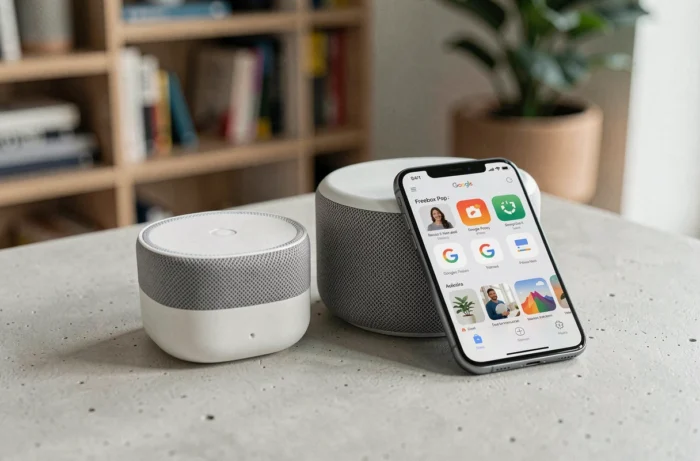
- Open the Google Home app on your smartphone, then tap the “+” in the top left and select “Set up device.”
- Choose “Works with Google,” then search for “Free” in the partner list to link the Free account to Google Home.
- Once the account is associated, the Player Pop appears in the list of devices. Assign it to a room (living room, bedroom) so that voice commands target the correct device.
- Test with “OK Google, turn on the Freebox” or “OK Google, play TF1 on the Player Pop” to confirm that the link works.
If the Player Pop does not appear after associating the Free account, restart the Player and relaunch the search. Feedback varies on this point: some installations require several attempts before the device is detected.
Google Assistant voice commands and Freebox Pop: what really works
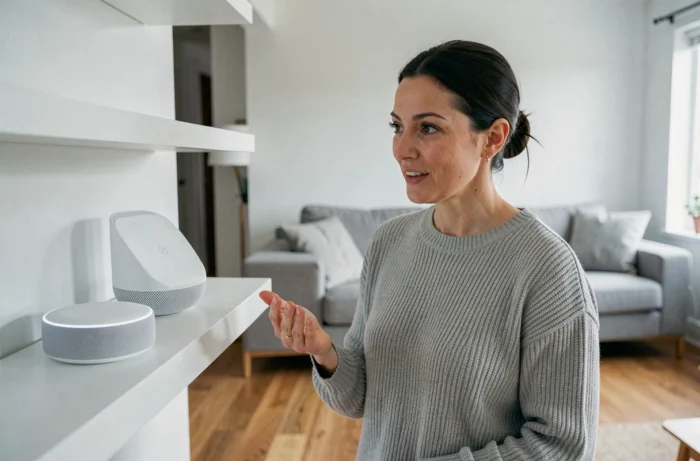
Once the Player Pop is integrated into Google Home, voice commands allow you to control the TV without a remote. You can change channels, adjust the volume, play or pause content, and turn off the Player. These commands can be issued through a Google Nest speaker in the kitchen or through the microphone of the Player Pop remote itself.
However, not all commands work uniformly. Launching a specific app (Netflix, YouTube) by voice works well. Navigating through the Freebox TV menus or accessing the Player settings via voice command remains limited. Voice control covers media playback, not the administration of the box.
To control other connected devices (Philips Hue bulbs, smart plugs, thermostats), it’s the Google Home app that centralizes everything, independent of the Freebox. The Player Pop then serves as an additional voice entry point in the home, not a true smart home hub.
Freebox updates and stability of Google connected devices
One often overlooked aspect: Freebox server updates directly impact the stability of connected objects. The Freebox Server update 4.12.12.3, deployed for Freebox Pop, Delta, and Ultra, fixed a Wi-Fi 5 GHz bug that caused intermittent disconnections.
This type of bug cascades down to Google Home speakers and smart devices that rely on Wi-Fi to receive commands from Google Assistant. After a Wi-Fi drop, even a brief one, a Google Nest Mini can take several minutes to reconnect and become responsive to voice commands.
To avoid these situations, regularly check that the Freebox server firmware is up to date via Freebox OS. After each major update, restarting the server and the Player Pop allows you to start fresh.
Precautions to take after an update
- Restart the Freebox server, then the Player Pop, then the Google speakers (in that order) so that each device reconnects properly to the network.
- Check in the Google Home app that all devices show the status “connected” and not “offline.”
- Test a simple voice command (“OK Google, what’s the weather?”) to confirm that the Assistant responds before launching more complex smart home commands.
The combination of Freebox Pop and Google Home works well daily for controlling the TV and a few connected devices by voice. The main friction point remains the Wi-Fi network: as long as the Player Pop and Google devices share the same band and the firmware is up to date, commands pass without noticeable delay.
To go further into home automation, complement with “Works with Google” compatible devices rather than trying to route everything through the Freebox.